

Make allows you to import or export scenarios easily and efficiently. With this feature, you can import a file, adjust the module connections, and start the scenario with a single click. Conversely, after creating your custom scenario, you can export it as a file in just a few steps, enabling others to import it into their personal workspace. This makes sharing your work simpler than ever. Let’s explore how to use these features.
Export a scenario
Once you’ve finished working on your scenario, click the square with three dots at the bottom of the screen.

Select “Export Blueprint” from the menu.
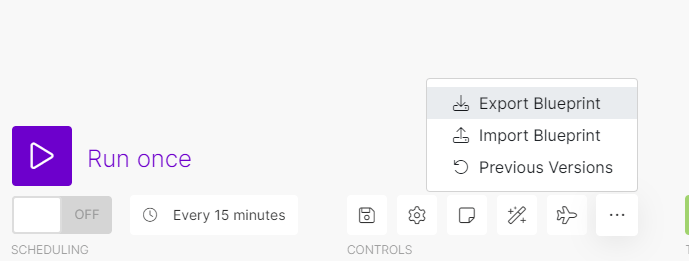
The download will start automatically. Save the JSON file to your local machine for future use or sharing.
Import a Scenario
To import a scenario, first create a new scenario in Make. Then, click the square with three dots at the bottom and choose “Import Blueprint”.
Select the appropriate file from your local machine. The entire scenario will then be displayed.
Lastly, you’ll need to configure the modules according to your specific connections. For instance, if you’ve imported a scenario containing a Spotify connection, you’ll need to link your own account to the modules. Adjust other elements as necessary.
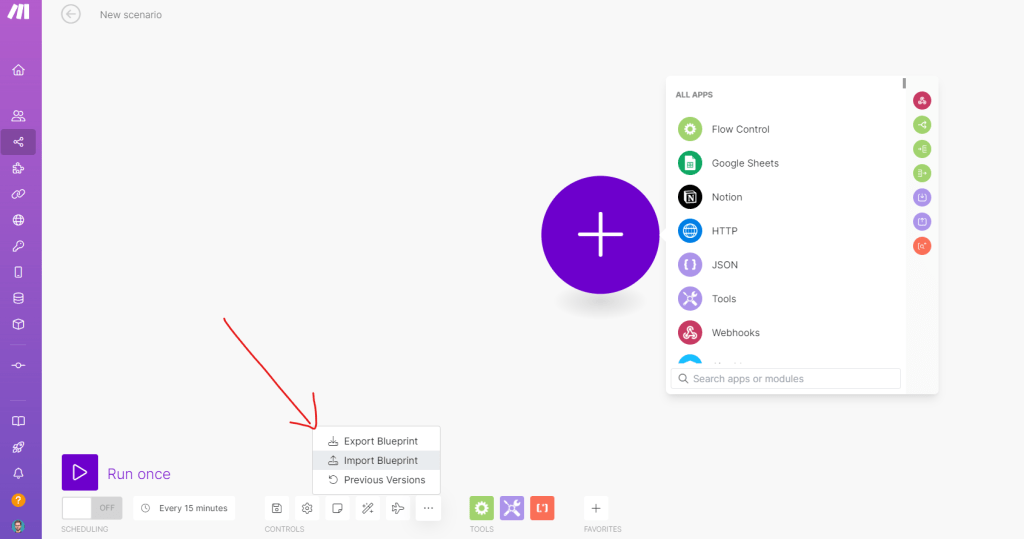
That’s all there is to it! You can now easily import scenarios to your Make account and share your work with others around the world.
If you have any questions or need further clarification, please don’t hesitate to reach out.
Happy automating!


 Marketing, Data, Automations, etc.
Leave a comment